

> ## Documentation Index
> Fetch the complete documentation index at: https://www.mixfont.com/docs/llms.txt
> Use this file to discover all available pages before exploring further.

# Best Practices

> Learn how to get better results from the Mixfont font generation API

export const FontPreview = ({fontFamily, children}) => <div className="font-preview-editor" contentEditable role="textbox" aria-label="Editable font preview" spellCheck={false} suppressContentEditableWarning style={{
  fontFamily: `"${fontFamily}", sans-serif`
}} tabIndex={0}>
    {children}
  </div>;

Use these practices to generate better fonts, handle asynchronous jobs reliably, and keep generated TTF files easy to test and reuse.

## Use high quality reference images

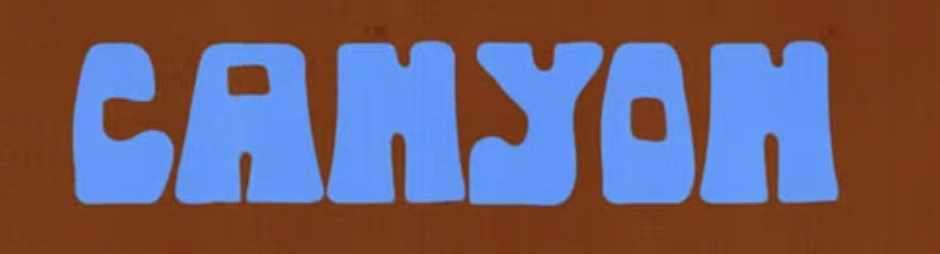
While the Mixfont model will work with any kind of image, stronger reference images will yield better results. To get a better quality font output, you should try to isolate the letterforms and make sure they have clean edges, visible shapes, and enough letters to communicate the style. The more evidence the model can gather from an input image, the better the results will be.

With input images that display multiple font styles, the model will usually choose the style that is larger or takes up more area in the image. It is recommended that you first crop the images to the exact text region before submitting it to the model for best results.

<table
  className="font-use-cases-table"
  style={{
width: "100%",
maxWidth: "100%",
tableLayout: "fixed",
borderCollapse: "collapse",
borderBottom: "0",
}}
>
  <colgroup>
    <col style={{ width: "25%" }} />

    <col style={{ width: "75%" }} />
  </colgroup>

  <thead>
    <tr style={{ borderBottom: "0" }}>
      <th
        style={{
      border: "0",
      color: "#111111",
      fontWeight: 700,
      paddingRight: "0.75rem",
      textAlign: "left",
      verticalAlign: "top",
    }}
      >
        <span className="font-table-heading">Input</span>
      </th>

      <th
        style={{
      border: "0",
      color: "#111111",
      fontWeight: 700,
      paddingLeft: "0.75rem",
      textAlign: "left",
      verticalAlign: "top",
    }}
      >
        <span className="font-table-heading">Output</span>
      </th>
    </tr>
  </thead>

  <tbody>
    <tr style={{ borderBottom: "0" }}>
      <td style={{ border: "0", paddingRight: "0.75rem", verticalAlign: "top" }}>
        <img
          src="https://static.mixfont.com/assets/20260603-204457-image-0r3jls23.webp"
          alt="Canyon Blob input example"
          style={{
        display: "block",
        marginTop: "0",
        width: "100px",
        maxWidth: "100%",
        borderRadius: "4px",
      }}
        />
      </td>

      <td style={{ border: "0", paddingLeft: "0.75rem", verticalAlign: "top" }}>
        <FontPreview fontFamily="Canyon Blob Display">
          CANYON - This is an editable playground for this generated font
        </FontPreview>

        <a href="https://static.mixfont.com/assets/20260603-205822-canyon-blob-display-font-w26h2u2u.ttf" download="Canyon-Blob-Display.ttf" className="font-download-button" style={{ verticalAlign: "top" }}>
          <Icon icon="download" size={16} color="#111111" />

          Canyon-Blob-Display.ttf
        </a>
      </td>
    </tr>

    <tr style={{ borderBottom: "0" }}>
      <td style={{ border: "0", paddingRight: "0.75rem", verticalAlign: "top" }}>
        <img
          src="https://static.mixfont.com/assets/20260603-210216-image-n06hmmov.webp"
          alt="Gossamer Editorial Serif input example"
          style={{
        display: "block",
        marginTop: "0",
        width: "100px",
        maxWidth: "100%",
        borderRadius: "4px",
      }}
        />
      </td>

      <td style={{ border: "0", paddingLeft: "0.75rem", verticalAlign: "top" }}>
        <FontPreview fontFamily="Gossamer Editorial Serif">
          The skills behind better performance
        </FontPreview>

        <a href="https://static.mixfont.com/assets/20260603-212006-font-001-gossamereditorialserif-regular-1-weyynop8.ttf" download="Gossamer-Editorial-Serif.ttf" className="font-download-button" style={{ verticalAlign: "top" }}>
          <Icon icon="download" size={16} color="#111111" />

          Gossamer-Editorial-Serif.ttf
        </a>
      </td>
    </tr>

    <tr style={{ borderBottom: "0" }}>
      <td style={{ border: "0", paddingRight: "0.75rem", verticalAlign: "top" }}>
        <img
          src="https://static.mixfont.com/assets/20260603-205718-image-79ajhtlu.webp"
          alt="Astral Groove input example"
          style={{
        display: "block",
        marginTop: "0",
        width: "100px",
        maxWidth: "100%",
        borderRadius: "4px",
      }}
        />
      </td>

      <td style={{ border: "0", paddingLeft: "0.75rem", verticalAlign: "top" }}>
        <FontPreview fontFamily="Astral Groove Display">
          SHUT EYE SHIRTS - With Mixfont, you can turn an image of text into a
          web-safe, editable font file in seconds.
        </FontPreview>

        <a href="https://static.mixfont.com/assets/20260603-205743-astral-groove-display-mjyqo2fb.ttf" download="Astral-Groove-Display.ttf" className="font-download-button" style={{ verticalAlign: "top" }}>
          <Icon icon="download" size={16} color="#111111" />

          Astral-Groove-Display.ttf
        </a>
      </td>
    </tr>

    <tr style={{ borderBottom: "0" }}>
      <td style={{ border: "0", paddingRight: "0.75rem", verticalAlign: "top" }}>
        <div className="font-prompt-input">
          rounded, italicized modern sans serif font
        </div>
      </td>

      <td style={{ border: "0", paddingLeft: "0.75rem", verticalAlign: "top" }}>
        <FontPreview fontFamily="Borealis Soft Italic Glow">
          This is the model output font for the prompt: "rounded, italicized
          modern sans serif font"
        </FontPreview>

        <a href="https://static.mixfont.com/assets/20260603-213122-font-001-borealissoftitalicglow-regular-jmq36p07.ttf" download="Borealis-Soft-Italic-Glow.ttf" className="font-download-button" style={{ verticalAlign: "top" }}>
          <Icon icon="download" size={16} color="#111111" />

          Borealis-Soft-Italic-Glow\.ttf
        </a>
      </td>
    </tr>
  </tbody>
</table>

## Choose the right input format

Start with the input that best captures the style you want. Use text generation when you can describe the type direction. Use image generation when a visual reference is the clearest source of truth.

| Goal                                  | Recommended input | Best practice                                                                        |
| ------------------------------------- | ----------------- | ------------------------------------------------------------------------------------ |
| Explore many style directions         | Text prompt       | Vary one style detail at a time so you can compare results clearly.                  |
| Match a sketch, sign, logo, or sample | Image URL         | Use a clear image with readable letterforms and strong contrast.                     |
| Build prompt presets into a product   | Text prompt       | Store reusable prompt templates for common categories and moods.                     |
| Recreate an existing visual direction | Image URL         | Use the reference image as the main style source, then test the TTF in real layouts. |

## Write specific prompts

Good prompts describe the type category, visual style, intended use case, and distinctive details. Avoid vague prompts that only describe mood.

```json theme={null}
{
  "prompt": "A neutral humanist sans serif with open counters, compact spacing, and strong readability for dashboard labels",
  "glyph_set": "standard"
}
```

| Stronger prompt                                                                 | Weaker prompt            |
| ------------------------------------------------------------------------------- | ------------------------ |
| `A high-contrast editorial serif with sharp wedge serifs for fashion headlines` | `A stylish fashion font` |
| `A soft geometric sans with rounded terminals for a wellness app identity`      | `A calm modern font`     |
| `A bold compressed grotesk with industrial spacing for concert posters`         | `A cool poster font`     |

## Pick the right glyph set

Use `standard` when English support is enough for exploration, prototypes, headings, logos, and first drafts. It generates 72 glyphs for English with basic letters, numbers, and punctuation.

Use `extended` when you need production candidates that support Latin-language text beyond English. It generates 319 glyphs for all Latin languages, including special characters, costs more credits, and may take 2-3 minutes to complete.

| Glyph set  | Best for                                        | Glyphs | Credits |
| ---------- | ----------------------------------------------- | ------ | ------- |
| `standard` | English concepting, prototypes, and exploration | 72     | 20      |
| `extended` | Production candidates for all Latin languages   | 319    | 50      |

Start with `standard` if you only need coverage for English. Standard inference runs are much faster and will be enough for most workflows. Choose `extended` if you want a more complete font with broader character coverage.

## Handle jobs asynchronously

Font generation runs as an asynchronous job. Store the returned generation `id` and `poll_url`, then poll until the job reaches a terminal status.

| Status      | Meaning                                          |
| ----------- | ------------------------------------------------ |
| `preparing` | Mixfont is preparing the request for generation. |
| `queued`    | The job is waiting to run.                       |
| `running`   | The model is generating the font.                |
| `succeeded` | The generated TTF is ready in `ttf_url`.         |
| `failed`    | The job could not complete. Check `error`.       |
| `cancelled` | The job was cancelled before completion.         |

Treat `succeeded`, `failed`, and `cancelled` as terminal states. Add a timeout in your application so you do not poll indefinitely.

Use the client libraries when you want Mixfont to handle polling. Use the REST API when you need direct control over job creation, status checks, retries, and storage.

## Store results for review

When a job succeeds, download or persist the generated `ttf_url` before you show it as a finished asset. Keep the generation `id`, original prompt or image URL, and `glyph_set` with the result so your team can compare outputs later.

Test generated fonts in real content, not only alphabet previews. Check headings, numbers, punctuation, short labels, and the longest strings your design needs to support.

## Rehost generated font files

Returned TTF files are temporary and will be deleted within 24 hours. Download each generated TTF file after the job succeeds, then rehost it on your own storage before you use it in production.

Update your `@font-face` declarations, CDN references, and saved asset records to use your rehosted file URL instead of the temporary `ttf_url`.

## Plan for credits and errors

Use the pricing table to estimate generation costs from each request's `glyph_set`. Make sure your workspace has enough credits before you submit a batch of generations.

If the API returns a `402` error, prompt the user to add credits before retrying. If a generation returns `failed`, show the `error` value and let the user adjust the prompt, image, or glyph set.

## Protect your API key

Call the Mixfont API from server-side code when possible. Do not expose your API key in browser JavaScript or public client bundles.

Read the API key from an environment variable, such as `MIXFONT_API_KEY`, and send it with the `x-api-key` header or through a Mixfont client library.

<CardGroup cols={2}>
  <Card title="Font generation guide" icon="signature" href="/docs/guides/font-generation">
    Build the full generation workflow with JavaScript, Python, or cURL.
  </Card>

  <Card title="API reference" icon="book-open" href="/docs/api-reference/font-generations/create-from-text">
    Review request and response fields for text generation.
  </Card>
</CardGroup>
