

> ## Documentation Index
> Fetch the complete documentation index at: https://www.mixfont.com/docs/llms.txt
> Use this file to discover all available pages before exploring further.

# Mixfont API Documentation

export const FontPreview = ({fontFamily, children}) => <div className="font-preview-editor" contentEditable role="textbox" aria-label="Editable font preview" spellCheck={false} suppressContentEditableWarning style={{
  fontFamily: `"${fontFamily}", sans-serif`
}} tabIndex={0}>
    {children}
  </div>;

Welcome to the developer documentation for the Mixfont API. Mixfont is a frontier AI lab developing generative AI for fonts. We develop and host several models for adding type intelligence to your application, including models for font generation from a text prompt or an image, and also models for identifying fonts and generating font variants.

Fonts generated via the API on Mixfont are completely unique and licensed for commercial use across any application.

![Mixfont in action](https://static.mixfont.com/assets/20260602-212712-image-ewguegz8.webp)

## Creating an API Key

To start making calls to the API you'll need an API key. If you don't already have a Mixfont account, visit [Mixfont](https://www.mixfont.com) and sign in.

Go to the [Developer Console](https://www.mixfont.com/console/keys) to create your first API key. When calling the API, include the key in the `x-api-key` header for each request.

![Developer Console Key Creation Flow](https://static.mixfont.com/assets/20260602-212442-image-d3bfvtw5.webp)

<Note>
  Make sure to copy the API Key to a safe place. The API Key will only be
  visible in the dashboard once. If you lose your key, you'll have to create a
  new one.
</Note>

## Examples

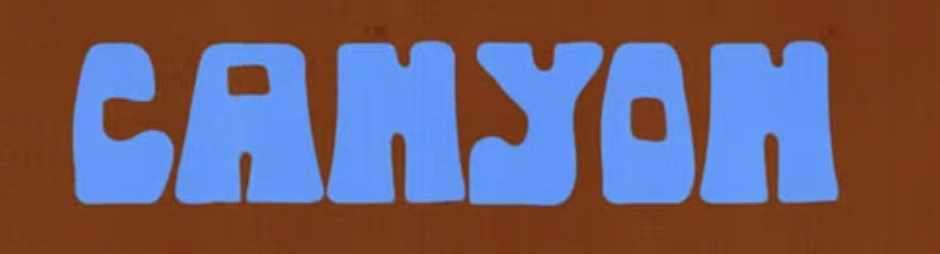
Mixfont is the world's first AI generation model that can be used for generating complete, web-safe fonts from an image or directly from a text prompt. Traditionally, AI generation engines and workflows can't create editable text in the same exact style. Mixfont's frontier font generation model solves that workflow and makes it possible for creators to edit the text directly by first converting the generated text into a font file.

<table
  className="font-use-cases-table"
  style={{
width: "100%",
maxWidth: "100%",
tableLayout: "fixed",
borderCollapse: "collapse",
borderBottom: "0",
}}
>
  <colgroup>
    <col style={{ width: "25%" }} />

    <col style={{ width: "75%" }} />
  </colgroup>

  <thead>
    <tr style={{ borderBottom: "0" }}>
      <th
        style={{
      border: "0",
      color: "#111111",
      fontWeight: 700,
      paddingRight: "0.75rem",
      textAlign: "left",
      verticalAlign: "top",
    }}
      >
        <span className="font-table-heading">Input</span>
      </th>

      <th
        style={{
      border: "0",
      color: "#111111",
      fontWeight: 700,
      paddingLeft: "0.75rem",
      textAlign: "left",
      verticalAlign: "top",
    }}
      >
        <span className="font-table-heading">Output</span>
      </th>
    </tr>
  </thead>

  <tbody>
    <tr style={{ borderBottom: "0" }}>
      <td style={{ border: "0", paddingRight: "0.75rem", verticalAlign: "top" }}>
        <img
          src="https://static.mixfont.com/assets/20260603-204457-image-0r3jls23.webp"
          alt="Canyon Blob input example"
          style={{
        display: "block",
        marginTop: "0",
        width: "100px",
        maxWidth: "100%",
        borderRadius: "4px",
      }}
        />
      </td>

      <td style={{ border: "0", paddingLeft: "0.75rem", verticalAlign: "top" }}>
        <FontPreview fontFamily="Canyon Blob Display">
          CANYON - This is an editable playground for this generated font
        </FontPreview>

        <a href="https://static.mixfont.com/assets/20260603-205822-canyon-blob-display-font-w26h2u2u.ttf" download="Canyon-Blob-Display.ttf" className="font-download-button" style={{ verticalAlign: "top" }}>
          <Icon icon="download" size={16} color="#111111" />

          Canyon-Blob-Display.ttf
        </a>
      </td>
    </tr>

    <tr style={{ borderBottom: "0" }}>
      <td style={{ border: "0", paddingRight: "0.75rem", verticalAlign: "top" }}>
        <img
          src="https://static.mixfont.com/assets/20260603-210216-image-n06hmmov.webp"
          alt="Gossamer Editorial Serif input example"
          style={{
        display: "block",
        marginTop: "0",
        width: "100px",
        maxWidth: "100%",
        borderRadius: "4px",
      }}
        />
      </td>

      <td style={{ border: "0", paddingLeft: "0.75rem", verticalAlign: "top" }}>
        <FontPreview fontFamily="Gossamer Editorial Serif">
          The skills behind better performance
        </FontPreview>

        <a href="https://static.mixfont.com/assets/20260603-212006-font-001-gossamereditorialserif-regular-1-weyynop8.ttf" download="Gossamer-Editorial-Serif.ttf" className="font-download-button" style={{ verticalAlign: "top" }}>
          <Icon icon="download" size={16} color="#111111" />

          Gossamer-Editorial-Serif.ttf
        </a>
      </td>
    </tr>

    <tr style={{ borderBottom: "0" }}>
      <td style={{ border: "0", paddingRight: "0.75rem", verticalAlign: "top" }}>
        <img
          src="https://static.mixfont.com/assets/20260603-205718-image-79ajhtlu.webp"
          alt="Astral Groove input example"
          style={{
        display: "block",
        marginTop: "0",
        width: "100px",
        maxWidth: "100%",
        borderRadius: "4px",
      }}
        />
      </td>

      <td style={{ border: "0", paddingLeft: "0.75rem", verticalAlign: "top" }}>
        <FontPreview fontFamily="Astral Groove Display">
          SHUT EYE SHIRTS - With Mixfont, you can turn an image of text into a
          web-safe, editable font file in seconds.
        </FontPreview>

        <a href="https://static.mixfont.com/assets/20260603-205743-astral-groove-display-mjyqo2fb.ttf" download="Astral-Groove-Display.ttf" className="font-download-button" style={{ verticalAlign: "top" }}>
          <Icon icon="download" size={16} color="#111111" />

          Astral-Groove-Display.ttf
        </a>
      </td>
    </tr>

    <tr style={{ borderBottom: "0" }}>
      <td style={{ border: "0", paddingRight: "0.75rem", verticalAlign: "top" }}>
        <div className="font-prompt-input">
          rounded, italicized modern sans serif font
        </div>
      </td>

      <td style={{ border: "0", paddingLeft: "0.75rem", verticalAlign: "top" }}>
        <FontPreview fontFamily="Borealis Soft Italic Glow">
          This is the model output font for the prompt: "rounded, italicized
          modern sans serif font"
        </FontPreview>

        <a href="https://static.mixfont.com/assets/20260603-213122-font-001-borealissoftitalicglow-regular-jmq36p07.ttf" download="Borealis-Soft-Italic-Glow.ttf" className="font-download-button" style={{ verticalAlign: "top" }}>
          <Icon icon="download" size={16} color="#111111" />

          Borealis-Soft-Italic-Glow\.ttf
        </a>
      </td>
    </tr>
  </tbody>
</table>

To see more examples and use cases, you can visit the Use Cases section of the documentation:

<Card title="Use Cases" icon="signature" href="/use-cases" horizontal>
  Learn about more Use Cases for Mixfont
</Card>

## Try it out

Before integrating with the Mixfont API, you can try out the font generation workflow for free on our [online website](https://www.mixfont.com). Free users are granted three free generations. The Mixfont website is also powered by the Mixfont API and should be demonstrative of the API capabilities that can be added to your application.

## API reference

<Card title="Font generation" icon="signature" href="/guides/font-generation" horizontal>
  Generate TTF font files from a prompt or reference image completion.
</Card>

<Card title="Font recognition" icon="scan-search" href="/api-reference/font-recognition" horizontal>
  Get the closest open-source font file, trained on a database of 1500+ fonts.
</Card>

## Getting started

<CardGroup cols={2}>
  <Card title="Quickstart" icon="rocket" href="/quickstart">
    Make your first request with JavaScript, Python, or cURL.
  </Card>

  <Card title="Best Practices" icon="list-check" href="/best-practices">
    Learn prompt, glyph set, polling, storage, and API key handling practices.
  </Card>
</CardGroup>

## Client libraries

<CardGroup cols={2}>
  <Card title="JavaScript" icon="code" href="/client-libraries/javascript">
    Use the Mixfont JavaScript client in Node.js and server-side JavaScript.
  </Card>

  <Card title="Python" icon="code" href="/client-libraries/python">
    Use the Mixfont Python client in Python applications and scripts.
  </Card>
</CardGroup>
