
How to find the closest looking Google Font from an image
If you have ever tried to recreate a design from a screenshot or image, you might already know that finding the closest looking Google Font from an image quickly is a challenging aspect of the full workflow.
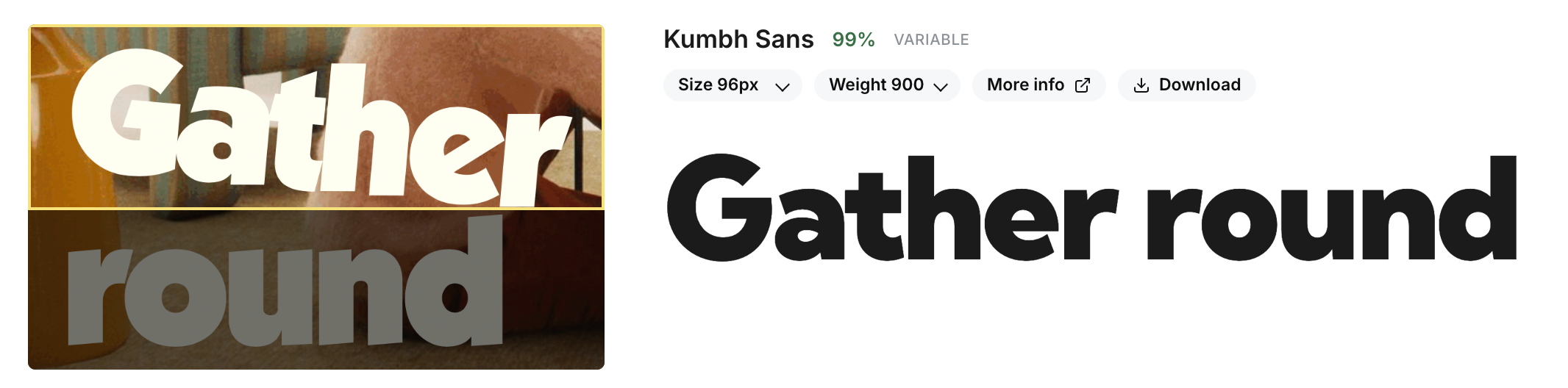
That is exactly the problem Mixfont Lens is built to solve. Instead of asking you to guess by eye or browse Google Fonts manually for an hour, Lens analyzes the text in your image and returns a ranked list of the closest open-source matches. In most workflows, that means you can go from image to usable Google Font candidate in a few seconds.
Why finding the closest Google Font from an image is difficult
On the surface, this sounds simple. You have an image with text, and you want the matching Google Font. In practice, there are a few problems:
- The source image is usually imperfect. It might be a screenshot, a compressed social graphic, a poster photo, or a cropped logo.
- The exact font in the image may not be on Google Fonts at all. What you really need is the closest usable alternative.
- Many font identification tools are optimized around proprietary font catalogs, which is less helpful when your goal is to ship a free or open-source typeface.
- Some tools require manual letter selection before they can even begin, which slows down the workflow.
If your actual goal is "find me the closest looking Google Font I can use right now," then a broad font database is not always the right answer. You need a recognition system that is optimized around practical open-source matches.
Why Google Fonts is usually the right target
There is a reason so many designers, developers, and marketers search for a Google Font match instead of just the original font name:
- Google Fonts are free to use.
- They are easy to deploy on websites and in product workflows.
- They are a practical fallback when the original typeface is commercial or unknown.
- They make collaboration easier because the whole team can access the same font library.
That changes the problem. You are not always trying to identify the historical exact font. Often, you are trying to find the closest looking Google Font from an image so you can reproduce the visual feel without licensing friction.
How Mixfont Lens finds the closest match
Lens is Mixfont's font recognition model for images. It was trained specifically for typography recognition and designed to map real-world references to actionable open-source font matches.
The workflow is straightforward:
- You upload an image with visible text.
- Lens detects the largest or clearest word in the image.
- It isolates that text sample and analyzes the letterforms.
- The model compares the sample against its library of open-source fonts.
- It returns a ranked shortlist of likely matches, starting with the closest candidate.
This matters because most real images are messy. They may contain multiple words, multiple styles, background noise, perspective distortion, or varying image quality. Lens is built to focus on the strongest sample first so the recognition step stays useful instead of brittle.
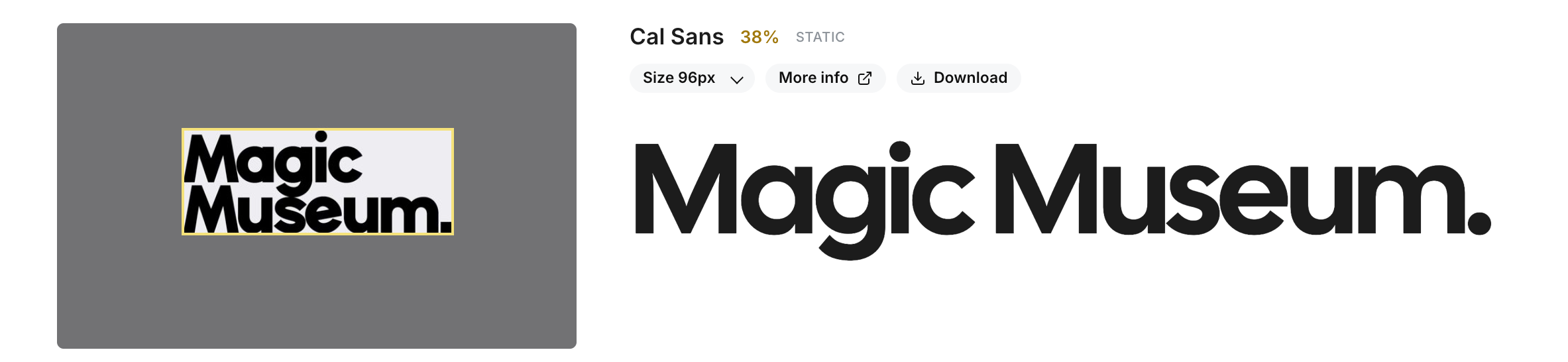
Lens is an open-weight neural network model trained on millions of font samples. It is designed to handle the variability of real-world typography images and return practical matches you can use immediately.
What makes Lens useful for Google Font matching
The biggest difference is that Lens is not trying to hand you a vague style label like "modern sans serif" or "condensed display." It is trying to return a ranked list of real font candidates you can test immediately.
That is especially useful in these cases:
- You need a Google Font alternative to a commercial brand font.
- You found typography you like in a screenshot and want something visually close.
- You are rebuilding a landing page or ad creative from a flattened asset.
- You need an open-source substitute for prototyping or production work.
- You want a faster workflow than manually comparing dozens of Google Fonts.
Lens also removes the manual letter-selection step that many font finders depend on. Instead of clicking individual glyphs before the tool can work, you can upload the image and let the model handle the recognition flow.
How to get the best result from a font image
If you want the closest Google Font match, the input image still matters. A better sample gives the model more signal to work with.
Here are the best practices:
- Use an image with one prominent word or short phrase.
- Crop tightly around the text if the full image has a lot of background clutter.
- Prefer higher contrast between the text and the background.
- Avoid tiny text samples when possible.
- Use the clearest version of the image you have, even if it is still imperfect.
Lens can work on screenshots, logos, posters, packaging, mockups, and other flattened images, but recognition gets harder when the text is extremely small, heavily blurred, or highly distorted.
Exact font vs. closest Google Font
This is an important distinction.
Sometimes the original font in the image is already on Google Fonts, and the top result may be the exact same family. But in many real workflows, the original typeface is commercial, custom, or simply unavailable. In those cases, the better outcome is not a dead-end answer. The better outcome is the closest looking Google Font you can actually use.
That is why ranked results matter. The top candidate may be the best fit immediately, but having a shortlist is valuable when several fonts share similar proportions, stroke contrast, terminals, or overall tone.
A faster workflow than manual browsing
Without a recognition model, the typical workflow looks like this:
- Open Google Fonts.
- Search by rough style terms.
- Scroll through dozens or hundreds of families.
- Compare each one by eye.
- Test a few guesses in your design or codebase.
That process is slow, subjective, and easy to get wrong, especially when the source image is low quality. Lens compresses that search space. Instead of starting from the entire library, you start from a shortlist of likely matches.
If you want to try that workflow directly, use the Mixfont Font Finder, which runs on top of Lens and is designed for identifying fonts from screenshots, logos, and other design references.
Who this is useful for
This workflow is useful well beyond traditional font identification:
- Designers recreating references from inspiration boards or screenshots.
- Developers matching typography from an existing site or app image.
- Brand and creative teams replacing commercial fonts with licensing-safe options.
- Growth teams rebuilding ads and landing pages from visual references.
- Product teams that need a repeatable path from image input to usable font choice.
If your team does this often, Mixfont also offers a font recognition API built around the same recognition flow.
The simplest way to find the closest looking Google Font from an image
If your goal is practical rather than academic, the process is simple:
- Upload the image.
- Let Lens isolate the strongest word sample.
- Review the ranked shortlist.
- Compare the top candidates against your original image.
- Choose the closest Google Font or open-source alternative and move on.
That is the core value of Lens. It helps you go from visual reference to usable type choice without turning font matching into a research project.
Try Lens for Google Font matching
If you need to find the closest looking Google Font from an image, screenshot, logo, or mockup, start with Mixfont Lens or go straight to the Font Finder. The model is built for real-world typography images and returns ranked open-source matches you can actually evaluate and use.
For a deeper technical look at how the recognition pipeline was built, read Learnings from training a font recognition model from scratch.